SCREENSHOT GUIDE
How to scan a QR code from a screenshot
Read a saved QR code on the same phone or computer. Follow the steps for your device, try a sample, or troubleshoot an image that will not scan.
QUICK ANSWER
Can you scan a QR code from a screenshot?
Yes. A clear screenshot contains the same QR pattern as the original. Open ScreenCode's free QR image scanner, tap Choose an image, and select the screenshot. On a computer, you can also drag in an image or paste it. ScreenCode reads the code in your browser and shows the result before you choose what to open.
You do not need a second phone, an app installation or an account to scan. Keep the entire QR code and its white border in the picture.
Scan your screenshot freeHow to scan a QR code screenshot on iPhone or iPad
- Save the picture. Save the QR image from your text, email or web page, or take a screenshot. Keep the whole code visible.
- Open the scanner. Open screencode.app in Safari on the same device.
- Choose the screenshot. Tap Choose an image and select the saved picture from your photo library or files. The picker's wording depends on your device.
- Read the result. Check the website address or other details before choosing an action. ScreenCode does not automatically open the link.
If ScreenCode cannot read the image, select Crop and retry. Keep the QR code and its white border inside the crop, then select Crop and scan.
For quick access next time, add ScreenCode to your iPhone Home Screen.
How to scan a saved QR code on Android
- Save or screenshot the code. A picture received in a message or email works too, provided it is clear and complete.
- Open ScreenCode in your browser on the same phone.
- Tap Choose an image. Use your device's picker to select the screenshot or saved photo.
- Review the decoded result. Check the destination or data before opening a link or taking another action.
No camera needs to point at your phone. If the picture contains several codes, ScreenCode lets you choose among the detected results.
How to scan a QR code image on Windows or Mac
- Open ScreenCode's image scanner in your browser.
- Add your picture. Drag the saved screenshot onto the scanner or click Choose an image. If an image is already on your clipboard, paste it with Ctrl + V on Windows or ⌘ + V on Mac.
- Check the result. Read the website address or embedded information before using the available action.
For a QR code inside a PDF, email or web page, take a screenshot of the code first. Choose the image, rather than the PDF document. ScreenCode accepts PNG, JPG, WebP and HEIC images up to 30 MB.
For frequent scanning while browsing, get the ScreenCode QR scanner extension for Chrome, Edge, Firefox or Safari on Mac.
TRY IT YOURSELF
Practice with a sample QR code
Take a screenshot of this sample, keeping its white border. Then open the scanner and select your screenshot. It contains a public website link and no personal information.
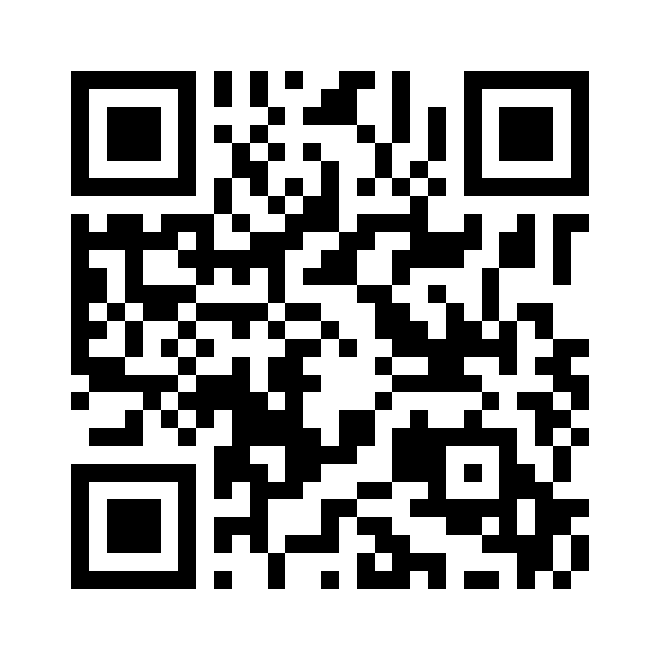
Expected result: https://screencode.app/wallet. Compare that address with the decoded result before opening it. It leads to ScreenCode's Wallet business-card builder.
Why won't a QR code scan from my screenshot?
If you see Couldn't read it, try these steps before taking another picture:
- Keep the whole code and border. A cut-off corner or missing white margin can prevent decoding. Crop around the code, not through its edges.
- Use the clearest original. A larger original image is better than enlarging a small, blurry screenshot. Ask for the original if a messaging app compressed it.
- Remove surrounding clutter. Select Crop and retry, frame the full code and border, then select Crop and scan.
- Try another image. If the pattern is obscured by glare, an overlay or severe distortion, retake the screenshot or ask the sender for a clearer copy.
- Check the file. Choose an image, not a PDF or a link to a file. If your browser cannot open it, save a PNG or JPG copy and try again.
The code scans, but its link does not work
Reading a QR code and opening its destination are separate steps. A screenshot can preserve a readable pattern even after a ticket, login session or destination link expires. ScreenCode cannot renew an expired code or make an unavailable website work; request a fresh code from its issuer.
For more help, visit ScreenCode support.
Is my screenshot uploaded or saved?
The image is decoded locally in your browser tab, without uploading the screenshot for scanning. Scanning is free and does not require sign-in. Saving eligible results to optional history or exporting files requires an account.
Scan history is off by default and stores eligible decoded values on your device when enabled, never the source images. Authenticator, passkey and Wi-Fi values are excluded from history. Review website addresses before opening them; decoding a link does not prove its destination is trustworthy.
AUTHENTICATOR SETUP
Need to scan a 2FA QR code on the same phone?
An authenticator setup code contains a secret. Keep the screenshot private, read it locally, and delete it after setup. Follow the complete same-phone authenticator guide for the enrollment steps and precautions.
Updated · By SquarePi, the maker of ScreenCode.